
In this article we will go over how a user can use the Trackforce Valiant self service registration process.
NOTE: This article goes over registering on the web from a computer. To register directly from a mobile device, please review the Help Center article: Valiant Mobile ESS Process
- How to Use the Self Service Registration Feature
How to Use the Self Service Registration Feature
To use the self service registration feature:
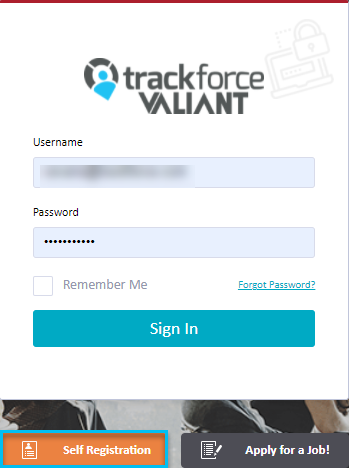
1. Navigate to the Portal website and click on the Self Registration link located towards the bottom of the page below the Sign In field,
2. Enter in the required information on the following page (SSN, Birth Date, Email Address, etc.) and press the Register button at the end to confirm
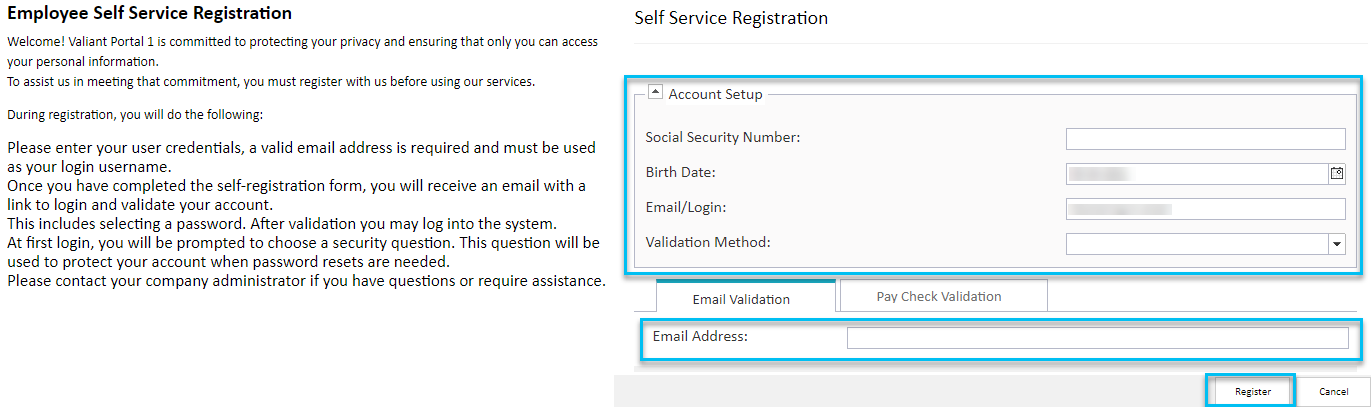
NOTE: You must already be added into the system as an active employee and have a valid email address added to your profile for the above step to work. If you receive an error message when attempting to submit your information please ask your internal HR Administrator to ensure your employee profile record has been successfully entered into the system and has your email addresses added to it. If you are an administrator going through this process, you will need to use a personal email since your work email is already associated with your administrator account.
3. A green SUCCESS banner will let you know a verification email was sent.

4. You will see a message stating to check your email, where you will see a generated message with a verification link inside that you will need to click on.
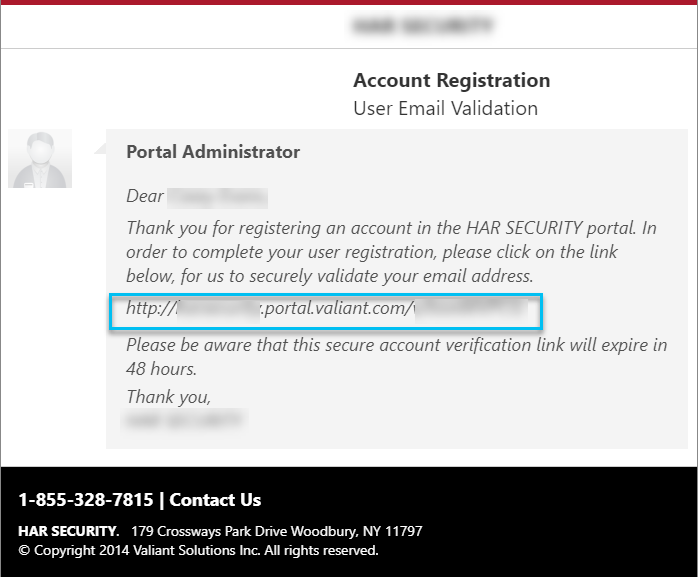
5. A green SUCCESS banner will let you know you accessed the link and can now create a password.

6. You will be prompted to create a password for your account. Make sure that it follows the guidelines specified on the left side of the screen and that it is typed twice to confirm.

7. A green SUCCESS banner will let you know your password was created.

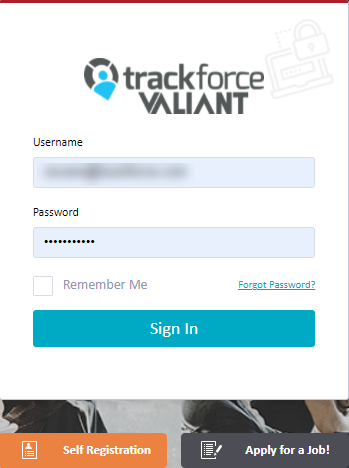
8. Once your password has been successfully created you will be redirected to the Portal home page and will need to log in with your email address as your username and your newly created password.
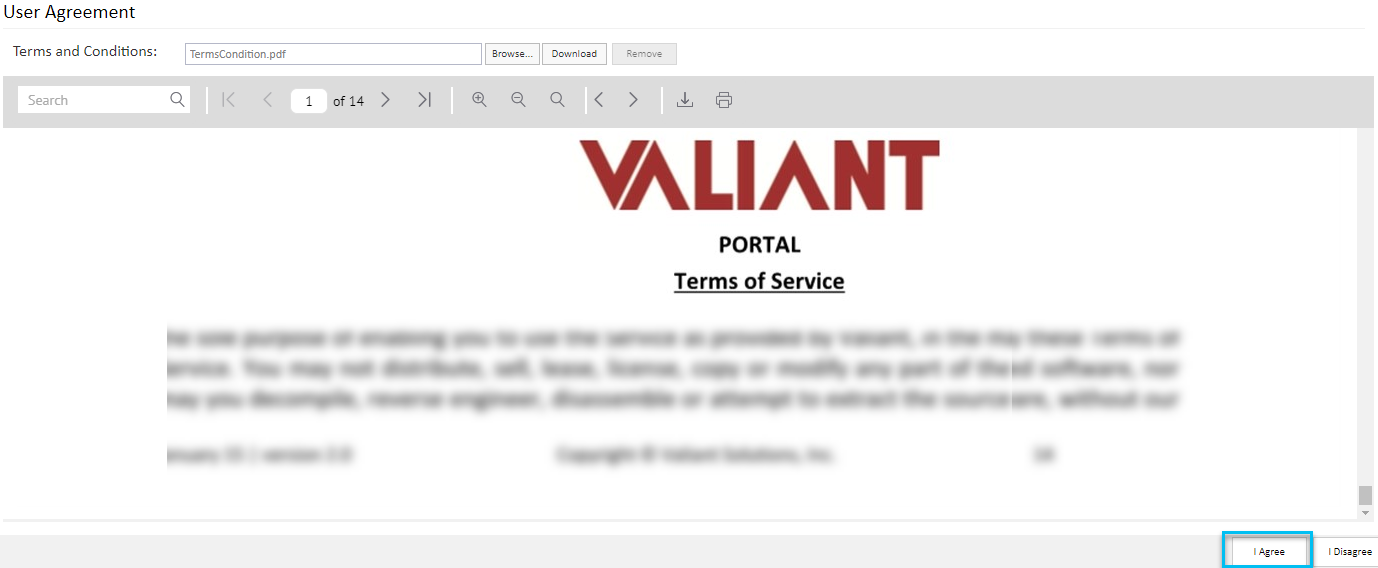
9. Read and accept the terms and conditions of the site, scroll down to the bottom of the page and press the I Agree button to confirm.
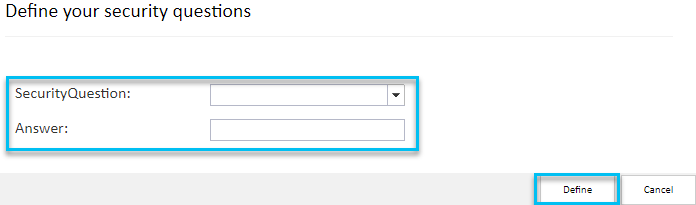
10. Create your security question information in case you need to reset your account going forward. Select a question from the dropdown and type the appropriate answer and press the button to confirm.
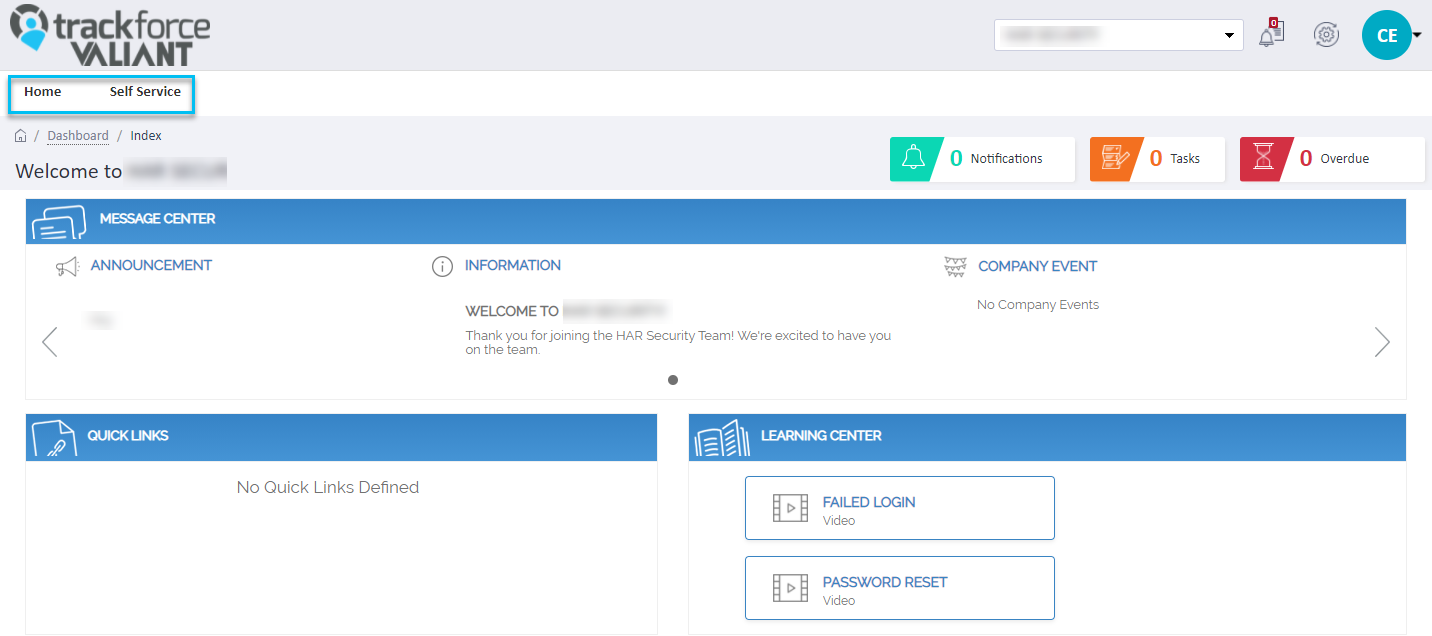
11. You are now logged onto the .portal.valiant.com/Dashboard/Index page.
Comments
0 comments
Please sign in to leave a comment.